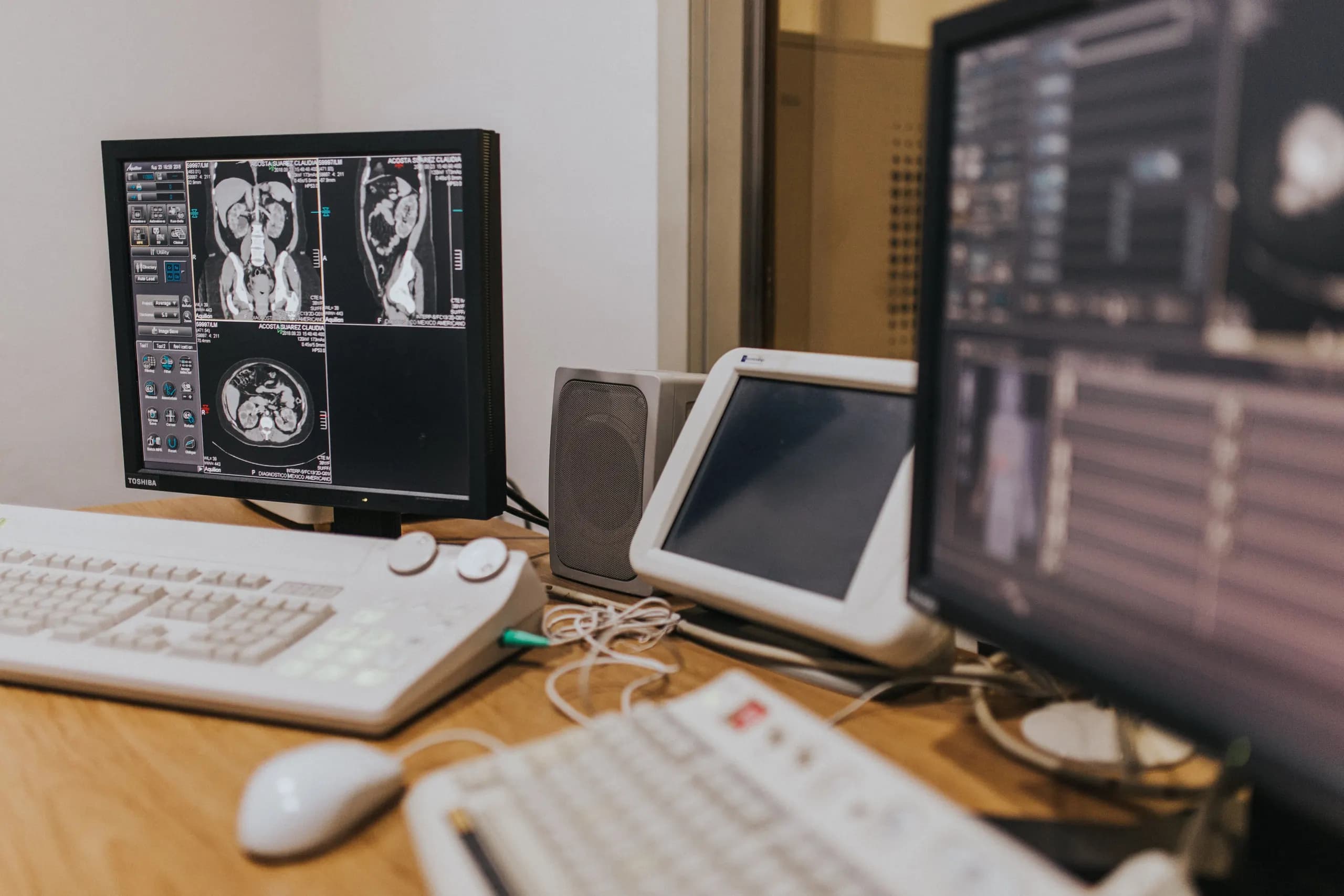
What 164.310(c) workstation security requires in plain terms
The standard in 45 CFR 164.310(c) requires physical safeguards on every workstation that accesses electronic protected health information, so that only authorized users can reach that information. In practice, the question an assessor asks is simple: can someone who should not be using a given workstation see, take or touch the ePHI on it? The standard has no separate implementation specifications. Appendix A to Subpart C marks it as required, which means you cannot treat it as optional or document your way out of it. You must identify the physical protections for each workstation and show they work.
The risks are ordinary but easy to underestimate. A screen showing a patient list can be read by a visitor across a nurse station (shoulder surfing). A laptop left in a car or a shared exam room can be stolen. A session left unlocked at a front desk gives the next person full access under the last user's login. Clinical and shared spaces make this worse because workstations are numerous, often mobile, and used by several shifts of staff. Remote setups at home add a physical location that the organization does not control at all.
NIST SP 800-66 Rev. 2 breaks the work into three key activities that give you a workable plan. First, identify every method of physical access to workstations and devices, including open rooms, carts, docking stations and home offices. Second, analyze the risk of each type of access. Third, identify and implement physical safeguards for each one, such as screen privacy filters, cable locks, auto-lock timeouts, badge-controlled rooms and positioning rules. Confirm with your security official which access types you have already mapped, because a workstation inventory that lacks physical location fields will leave the first activity incomplete. Your asset records, whether kept in a tool such as GLPI or elsewhere, should show where each workstation is normally used.
Which workstations and teams fall under 164.310(c)
Section 164.310(c) applies to every workstation that can reach ePHI, so the first job is deciding which devices and people count. The cards below cover the device classes, workforce groups and scoping calls that most often change the physical safeguards you must document and test.
Desktops and fixed clinical workstations
Any desktop or fixed clinical workstation that opens an EHR, a PACS viewer, a billing system or an ePHI file share is in scope. Shared clinical areas such as nursing stations and imaging rooms usually hold several of these. Check each physical location against the facility access controls in 164.310(a), because the workstation safeguard depends on who can walk up to the screen and keyboard.
Laptops and mobile devices
Laptops that leave the building are the most common gap in workstation scoping. Treat any laptop that stores ePHI locally, caches sessions or can reach an ePHI system as in scope, even when it is used only by one clinician. Confirm who holds the device, where it is stored overnight and whether a lost unit would expose unencrypted ePHI.
Thin clients and shared kiosks
Thin clients and shared kiosks often look low risk because they hold no data, but they still provide a path to ePHI. Decide whether the session can be left open between users, whether the screen is visible to patients or visitors, and how the device is locked down when it is unattended. Each shared endpoint needs its own physical protection plan.
Home and remote setups
A workstation in a home office or remote site is in scope if it accesses ePHI. The organization must decide what physical controls it can reasonably require, such as a locked room, screen privacy and no shared household use, and it must write those expectations into its workstation use policy. Ask whether personal devices are permitted at all, since that choice changes who controls the hardware.
Workforce, contractors and managed IT providers
Anyone who uses or administers an in-scope workstation falls under the safeguard, including employees, temporary staff, contractors and managed IT providers who image, repair or remove devices. Vendors who touch hardware are often overlooked. Confirm in writing which party controls physical access during service visits, and tie those duties to the business associate terms in 164.308(b).
Devices that only sync encrypted data
A device that only holds encrypted, synced data is a scoping decision, not an automatic exemption. If the device can decrypt and display ePHI, it generally counts as a workstation that accesses ePHI. Document the reasoning in the risk analysis, test whether the device can open ePHI offline, and confirm the encryption and key handling with the vendor before deciding it sits outside the standard.
How physical access to workstations creates ePHI exposure
The standard expects you to start by listing every way someone could physically reach a workstation that touches ePHI, then judging the risk of each. Open office areas, reception screens, lobby and exam room terminals, vehicles, home offices and unattended sessions are the paths that usually matter most. A workstation in a shared clinic room can be viewed or removed by people who have no business with the patient record on screen, and a laptop left in a car or a home office can leave the building without anyone noticing. NIST SP 800-66 Rev. 2 frames this as identifying all methods of physical access, analyzing the risk of each, and then implementing safeguards for them. Build that list from a walk-through of each site and from your asset inventory, and confirm with staff which rooms and remote locations actually have devices in use.
Each access path points to a matching physical safeguard. Automatic screen locks and short idle timeouts limit the damage from an unattended session, privacy screens reduce shoulder surfing at reception and in exam rooms, cable locks and secured rooms slow theft from open areas, and asset tags tie each device to a named owner so losses are visible. Placement matters as much as hardware: screens should face away from walkways and waiting areas, and terminals in patient spaces may need a different configuration from those in back offices. None of these measures prevents theft or viewing by itself, so the risk analysis should record which safeguard addresses which path and where residual exposure remains. Ask your vendors to state exactly what each product does and does not stop before you rely on it in the analysis.
The physical surroundings each workstation is expected to have are defined in the workstation use policies under 164.310(b), so the access map and those policies should be written together. The use policy says, for example, that screens must lock after a set idle period, that devices stay out of vehicles overnight, or that home workstations must sit away from shared household access. The access map then tests whether those rules hold in each location. Where a path has no policy, or a policy cannot be enforced there, record the gap and the decision made about it. Review the map whenever a site changes layout, a clinic opens or closes, or staff begin working remotely, because those changes create new access paths that the earlier analysis would not have covered.
How an assessor tests 164.310(c)
This table sets out the steps an assessor typically takes to test workstation physical safeguards, the evidence each step asks for, and the gaps that most often appear. Read each row as a test the organization should be able to pass before an assessment begins. The main takeaway is that the inventory, the risk analysis and the physical controls must agree with one another, and an assessor will check all three.
| Test area | Evidence requested | Common findings |
|---|---|---|
| Documented workstation inventory | Inventory of every workstation that accesses ePHI, with location, assigned user and the physical access methods for each | Inventory omits home offices, shared clinic devices, loaner laptops or workstations held by contractors |
| Physical access methods | List of how each workstation can be physically reached, such as open reception areas, shared rooms, vehicles or home settings | Access methods were never identified, so the list covers only the main office |
| Sampling across locations and roles | Selected workstations from each site and user role, chosen by the assessor, with the safeguards in place at each | Safeguards exist on paper for one site but were not observed at satellite or remote locations |
| Observed physical safeguards | On-site or screen-share walkthrough showing screen positioning, locking, cable locks, privacy filters and secured storage | Safeguards described in policy were not present in practice, such as unlocked rooms or unattended sessions |
| Risk analysis entries for physical access | Risk analysis records that list workstation physical access threats, likelihood, impact and the rating assigned | Physical access is absent from the risk analysis or listed without any rating or owner |
| Link between risks and controls | Mapping from each documented physical access risk to the safeguard that treats it and the date it was last reviewed | No traceable link, so controls cannot be shown to address any identified risk |
| Review and update cadence | Records showing the inventory and physical controls were reviewed after office moves, new device types or staff changes | Reviews are not dated, or the inventory was last updated before a relocation or new hiring wave |
Implementing 164.310(c) step by step
This sequence turns the workstation physical safeguard into a documented, tested control: you first learn which workstations touch ePHI, then how each one can be physically reached, then decide and verify the protections. Each step produces an artifact that feeds the next and the risk analysis.
Inventory every workstation class that accesses ePHI
Start by listing every device that can open, store or display ePHI, including desktops, laptops, thin clients, kiosks, clinical carts and home or remote setups. Group them into classes that share a location, owner type and physical exposure, such as front-desk terminals in a public area or laptops used off site. The owner of this step is usually IT operations working with the security official, and the input should come from the systems that hold ePHI, not from the asset list alone. The output is a workstation register that maps each device to its class, location and the applications it reaches. You know it is done when the register reconciles with the ePHI system inventory and with identity records for the users assigned to each device. If you run GLPI, its Assets module can hold computer and peripheral records, and the GLPI Agent can populate them automatically, which gives you a starting point to check against.
Enumerate physical access methods for each class
For each workstation class, list every way a person could physically reach the device or its screen, keyboard, ports, storage and displayed data. Consider authorized users, patients and visitors, cleaning and maintenance staff, people passing a screen in a shared area, and anyone who could take a device from a vehicle, home or shared desk. NIST SP 800-66 Rev. 2 describes this step as identifying all methods of physical access to workstations and devices. The output is an access-method matrix with one row per class and one column per access route, marked with the people and locations involved. The step is complete when someone outside the immediate team, such as a facilities lead or a clinician, has reviewed the matrix and confirmed nothing obvious is missing. Walk the spaces yourself rather than relying on floor plans alone.
Analyze risk for each access type
Assess the likelihood and impact of unauthorized access by each route in the matrix, considering what ePHI the workstation can show or store and how long it might be unattended. Record the threat, the affected ePHI, the existing controls and the residual risk in the terms your risk analysis already uses. The security official or the risk management lead should own the assessment, with input from the department managers who run each area. The output is a set of risk entries tied to specific workstation classes and access routes. Feed these entries into the enterprise risk analysis required under 164.308(a)(1), so that the same workstation risks appear in the risk management plan and are not tracked in a separate spreadsheet. The step is complete when each entry has an owner and a decision: accept, reduce or transfer.
Select and implement physical safeguards per class
Choose the physical protections that address the residual risks for each class. Typical options include screen placement away from public sightlines, privacy filters, locking cable systems, auto-lock and session timeouts at the physical console, badge or room controls for workstation areas, locked storage for portable devices, and secure handling rules for laptops taken off site. Decide per class, because a clinic exam room and a home office call for different measures. The output is a safeguard standard for each class that names the controls, the location where they apply and the person responsible for keeping them in place. The step is complete when the standard has been approved by the security official and the controls are physically installed or configured, with photos, purchase records or configuration screenshots kept as evidence. Confirm with each vendor which physical and software controls their products support before you commit to them.
Document the safeguards and link them to policy
Write down the chosen safeguards and connect them to the workstation use policy under 164.310(b), which defines the proper functions and physical surroundings of each workstation class. The documentation should include the workstation register, the access-method matrix, the risk entries, the safeguard standard and the approval record, with version dates and an owner for each document. The documentation standard in 164.316 requires written policies and procedures and retention of documentation, so store these items where they can be produced during an OCR investigation. The step is complete when staff who use each class can point to the rules that apply to them and an auditor can trace a line from a workstation to its risk entry and its safeguard.
Train users and confirm the safeguards in use
Brief the people who operate each workstation class on the safeguards that apply to their device and location, and on what to report when a control fails, such as a broken lock, a turned screen or a missing privacy filter. Training content should come from the safeguard standard so the instructions match what is installed. The output is a training record for each class and a simple way for staff to report physical issues. The step is complete when attendance is recorded and a spot check of the workstations confirms that the controls match the standard. Keep the training record with the other workforce training evidence.
Verify the safeguards on a set schedule
Test each safeguard against the standard at a set interval, and after any change in layout, staffing, device model or remote work policy. Verification combines a physical walk-through of each workstation area, a check of the workstation register against current device inventory, and a review of incidents and reported failures. Use Wazuh's Syscollector inventory, which collects hardware, installed software, users and network details from each endpoint, to confirm that devices in the register still exist and that no unknown endpoint has appeared. The owner is the security official or a delegate, and the output is a dated verification report with findings, assigned fixes and closure dates. The step closes the loop: findings update the risk analysis and the safeguard standard, and the next cycle starts from the revised register. Set the interval in your own policy and confirm that it fits your environment, since the Security Rule does not prescribe one for this standard.
Evidence that passes a workstation security review
An assessor testing 164.310(c) wants to see that you know every workstation that reaches ePHI, how each one can be physically accessed, and which safeguards cover it. The six artifacts below connect those answers, and each one stays useful only if it is reconciled and dated between audits.
Workstation inventory with owner and location
This is the starting list: every workstation, laptop and shared terminal that can open ePHI, with its asset tag, assigned owner, physical location and status. Assessors sample from it and then walk to the desks it names, so a mismatch between the list and the floor is the fastest finding you can get. Reconcile it against directory and endpoint records on a fixed schedule, and record who signed off each reconciliation. Open-source asset tools such as GLPI can hold this record, with its Assets module tracking computers and peripherals, but the entries still need an owner who checks them.
Physical access method matrix
Build a table that lists each way someone can physically reach a workstation class, such as open clinic floors, shared kiosks, home offices, vehicles and loading areas. Next to each method, record the risk you assessed and the control that addresses it. NIST SP 800-66 Rev. 2 uses this same sequence of identify, analyze and implement, so the matrix doubles as evidence that you followed it. Revisit the matrix when a clinic opens, a floor is reconfigured or remote work policy changes.
Safeguard standard per workstation class
Group workstations into classes, such as clinical exam-room desktops, front-desk terminals and mobile laptops, and write one safeguard standard for each class. The standard names the required measures, for example screen privacy filters, cable locks, auto-lock timing and locked cabinets for shared devices. A single written standard per class is easier to defend than an ad hoc list of exceptions, and it gives the walkthrough team a yardstick to test against.
Configuration records and photos of safeguards
Keep dated evidence that each safeguard is actually in place: photographs of mounted privacy screens and locked enclosures, cable lock installation records, and configuration exports showing screen-lock and session timeout settings. Store these with the workstation identifier so an assessor can match a photo to a row in the inventory. Refresh the images after equipment moves or refits, because an old photo of a desk that has since changed is weak evidence.
Sampled walkthrough records
Assessors often pick a handful of workstations and check them in person, so run your own walkthroughs first. Use a checklist drawn from the safeguard standard for each class, date every entry, and record the name of the person who performed it. Record deviations and the fix date, not only the passes. Schedule walkthroughs at varied times and areas so the log shows ongoing checks rather than one preparation visit before the audit.
Risk analysis entries linked to physical controls
Your enterprise risk analysis should contain entries for workstation physical access, each tied to a control in the matrix and to a remediation owner and status. An assessor reads these to see whether the risk was identified, rated and treated. Entries that name a specific workstation class and a specific control are far more persuasive than generic statements that physical security is in scope. Confirm the wording against your own risk management plan before relying on it.
What meeting 164.310(c) costs in money and effort
This table breaks down the cost components of meeting the workstation security standard, showing who is paid for each, whether it is one-time or recurring, and what moves it up or down. Use it to shape a written scope and to know which figures to request from vendors and advisers, since no prices or durations are published for this standard.
| Cost component | Who is paid or who bears it | One-time or recurring, and what drives it |
|---|---|---|
| Physical safeguard hardware (locks, privacy screens, cable locks, secured storage) | Hardware vendors or facilities teams, paid per purchase order | Mostly one-time per device or room, with replacements recurring. Driven by device count, device mix (desktops versus laptops) and how many sites need secured storage. Ask vendors for unit and bulk pricing. |
| Workstation inventory tooling | Software vendors or internal IT; open-source options carry no license fee for GLPI (GPL-3.0-or-later) or Wazuh (GPL-2.0-only) | Recurring for commercial tools in annual or per-endpoint terms; for self-hosted open source, the main cost is hosting and staff time. Driven by endpoint count and number of sites. Ask for per-endpoint terms and included agent support. |
| Engineering or facilities time to inventory and walk through sites | Internal IT, facilities staff or an implementation partner under a fixed-scope agreement | One-time for the initial walk-through, then recurring for periodic re-checks. Driven by number of sites, remote share and how many locations hold workstations with ePHI. Ask for hours by site in the written scope. |
| Documentation upkeep for workstation use and physical controls | Internal compliance or security staff, sometimes supported by a consultant | Recurring at each policy review and after office moves or device changes. Driven by staff turnover, the number of workstation classes and how often policies change. Ask who owns updates and how often reviews occur. |
| External risk analysis support | Outside HIPAA consultants or security firms, paid by scope | Often one-time per cycle, with updates recurring. Driven by the number of physical access paths identified, sites in scope and whether remote workstations are included. Ask whether the physical access analysis is itemized in the deliverable. |
| Assessor sampling and evidence requests | Independent auditors or OCR-directed reviewers; the entity pays its own internal preparation time | Recurring at each audit or review. Driven by sample size chosen by the assessor, how quickly evidence is produced and how well the asset register is maintained. Ask assessors for their sampling approach before fieldwork. |
Open-source tools that produce workstation inventory evidence
GLPI's Assets module is the place to record what workstations exist and where they are. It tracks computers, monitors, peripherals, network equipment and racks, so a workstation can be tied to a location, a room or rack, an assigned user and related peripherals. Records can be typed in by hand or pushed automatically by the GLPI Agent, which uses the native inventory built into GLPI since version 10. Automated collection reduces the gap between what the register says and what is physically on the desk.
- Location fields: Attach each workstation to a site, building or room so the register shows where ePHI-capable equipment is expected to be.
- Assignment history: Record the assigned user and changes over time, which supports the workstation-to-user link an assessor may trace.
- Peripheral tracking: Log monitors and other peripherals that sit at a workstation, since these are part of the physical setup the standard concerns.
- Agent-based collection: Use the GLPI Agent to push hardware and software data so manual entries are checked against discovered devices.
- Retirement status: Keep decommissioned machines in the register with their status, which links to the disposal and re-use specifications in 164.310(d).
Confirm with your team that the GLPI version you run includes the native inventory features described in the vendor's Assets documentation, and decide who is accountable for keeping location fields accurate.
Wazuh's Syscollector module reports from each endpoint what the machine actually contains and runs. It collects hardware details, operating system, installed software, network interfaces, open ports, running processes, services, users and groups, and Windows updates. The data is stored in the Wazuh indexer and shown in dashboard inventory views and reports. This gives a current, machine-sourced record that can be compared with the asset register to spot workstations that are unregistered, changed or no longer reporting.
- Hardware and OS records: Syscollector captures the operating system and hardware of each endpoint, which helps confirm a registered workstation is the one that is connected.
- Users and groups: Local user and group data shows who can sign in to a machine, relevant to the workstation access questions in the standard.
- Update status: Windows update data supports evidence that workstations accessing ePHI are patched.
- Dashboard reports: Inventory views and exported reports give an assessor a dated view of the endpoint population.
- Gap detection: Comparing the Syscollector population against the GLPI register highlights workstations that appear on one list but not the other.
Confirm which operating systems and endpoint types your workstations use are supported by the Syscollector version you deploy, and check how long inventory data is retained in your indexer.
These tools produce records about workstations. They do not produce the physical safeguards the standard requires, such as locked rooms, privacy screens, cable locks, screen positioning or restricted seating. An inventory can show that a workstation exists, where it is recorded and what software it runs. It cannot show that a door was locked, that a screen faced a wall or that a visitor was kept away from it. Those controls must be defined, implemented and evidenced through other means, such as written procedures, physical security records and periodic walkthroughs.
- Physical controls stay outside the tools: Locks, enclosures and seating decisions need their own documentation and checks.
- Records need a reviewer: Someone should compare the register and endpoint data on a schedule and act on differences.
- Scope must match reality: Workstations used for remote access or from home need to be recorded even if they are outside the building.
- Risk analysis informs choices: The physical access risks identified under NIST SP 800-66 Rev. 2 decide which safeguards to implement.
- Independent assessment decides sufficiency: An auditor or assessor, not a tool vendor or implementation partner, determines whether the evidence is adequate.
Before relying on either tool as evidence, confirm with your compliance lead and an independent assessor what they will accept for your environment.
Where workstation security controls usually fall short
Workstation security under 164.310(c) fails less often for lack of a policy than for lack of coverage: devices the inventory never saw, safeguards nobody checked on site, and controls that did not change when the office or the hardware did. The six gaps below are the ones assessors and incident reviews most often surface, each paired with a check you can run.
Home and BYOD devices missing from inventory
Laptops at home, personal devices used for charting or email, and clinician tablets often sit outside the asset list because they were never issued through central procurement. Section 164.310(c) applies to any workstation that accesses ePHI, so an unlisted device is an unprotected one by definition. Check remote access logs and identity provider records against your asset register, then confirm each personal device has a documented owner, an enforced screen lock and an approved access path. The GLPI Assets module can hold these records, and its agent can populate them automatically where the device is managed.
Safeguards documented but never verified
Many organizations write that screens lock after inactivity, that monitors face away from waiting rooms and that cable locks secure laptops, then never test any of it. A written safeguard is not evidence that it works in the room where the workstation sits. Schedule walkthroughs of clinical areas, photograph or sample check representative stations and record the result against each workstation class. Ask whether the walkthrough found the same answer as the policy, and if not, which one the staff actually follow.
Risk analysis not linked to physical controls
The risk analysis may name workstation theft or shoulder surfing, yet no physical control is tied to that risk. NIST SP 800-66 Rev. 2 describes this standard as a sequence: identify every method of physical access to workstations and devices, analyze the risk of each, then implement safeguards for each. Build a table with one row per access method, the risk rating from your analysis, the physical safeguard chosen and the owner who verifies it. Any risk with no safeguard row is an open finding.
Shared clinical workstations left unlocked
Nurse stations, imaging consoles and reception terminals are shared by many people across shifts, so no single user owns the lock. Sessions left open are a common source of inappropriate ePHI access that the technical logs attribute to the last person who logged in. Define a maximum idle time for each shared station, place automatic locking and badge or proximity re-login where the hardware supports it, and position screens so the content is not visible from corridors. Confirm the settings on sampled machines rather than trusting the image build.
Stale inventory after device refresh
When a workstation is replaced, the old record often stays active, the new machine goes unregistered and the replacement's physical safeguards are never applied. Over time the inventory describes hardware that no longer exists. Tie each refresh to a checklist that retires the old asset, registers the new one with its location and user, and confirms the lock, encryption and monitoring agents report in. Wazuh Syscollector can list hardware, installed software and services per endpoint, which helps spot machines reporting that do not match the register.
No review after office moves
Office moves, floor reconfigurations and new reception layouts change where workstations sit, who passes them and what a visitor can see. Physical safeguards chosen for the old room can fail silently in the new one. Before and after any move, walk the new layout, check sightlines to screens, confirm workstations are in areas with the same access controls and update the workstation records with new locations. Treat the walkthrough as a change event with a named approver, not a facilities task that IT hears about later.
Questions buyers ask about 164.310(c) cost, effort and audits
Does HIPAA certify workstation security under 164.310(c)?
No. HIPAA has no certification, and HHS has stated that no Security Rule standard requires an entity to certify compliance. HHS also does not endorse or recognize private certifications, and a certificate would not stop HHS from later finding a violation. For 164.310(c), the practical question is whether your workstation safeguards can be shown to an assessor or OCR investigator. Evidence such as a current workstation inventory, documented physical safeguard decisions and records of how they are applied carries that weight. Ask any firm offering a HIPAA certificate what the document actually attests and who issued it.
How much effort does workstation physical security take?
The effort depends mostly on how many workstations access ePHI, where they sit and how often they leave controlled spaces. The standard has no separate implementation specifications, so the work is a set of decisions and proof rather than a long checklist. The main drivers are:
- The number of endpoints, including laptops, kiosks and shared clinical workstations.
- Whether machines sit in public areas, exam rooms, reception or home offices.
- How many physical access routes exist, such as doors, docking stations, ports and unattended sessions.
- How much inventory data already exists, since a current asset list makes the analysis much faster.
NIST SP 800-66 Rev. 2 describes the work as identifying each method of physical access, analyzing its risk and implementing safeguards. Ask your team or partner to estimate effort per site and per device class.
Can our own team handle workstation security without outside help?
Often yes, if the team has someone who understands the Security Rule, can run a physical walkthrough and keeps the asset records current. Internal staff usually own the day-to-day controls: screen locks, cable locks, privacy screens, secure storage and the rules for where workstations may be used. Outside help is most useful for an independent review of your analysis, for configuring the inventory tooling or for preparing evidence before an audit. Note that an outside firm can prepare your evidence, but only an independent assessor can issue a report on it. Whatever you choose, the organization remains responsible for the standard.
What do staff need to do to keep workstations secure?
Staff carry much of the workstation safeguard in practice, even though the standard itself sets the physical protections. Typical expectations include locking screens when stepping away, positioning monitors away from public view, keeping laptops secured when traveling and reporting lost or stolen devices quickly. Staff also need to know which locations and home setups are permitted, which links to the workstation use standard in 164.310(b). Training should be recorded and repeated when rules change. Ask for a short acknowledgment process so you can show staff were told what the rules are.
How long does a 164.310(c) workstation security project take?
The duration depends on scope, and no fixed timeline applies to every organization. A single clinic with a small set of workstations can move far faster than a multi-site health system with mixed device types and remote users. Timing is driven by the size of the device inventory, the number of sites, how many decisions need management approval and how much existing documentation can be reused. Any timeline quoted to you should follow from a written scope that lists the sites, device classes and deliverables. Ask for milestones tied to each deliverable rather than a single end date.
What will an assessor ask for to test workstation security?
An assessor, whether an internal reviewer, an external audit firm or an OCR investigator, will usually ask how you identified every route to workstations that access ePHI, and how you decided which safeguards to apply. Expect requests for:
- A current inventory of workstations and devices that access ePHI, such as one produced by GLPI or Wazuh.
- The risk analysis entries for physical access methods and the decisions taken.
- Written policies showing which safeguards apply to each workstation class.
- Records of how safeguards were implemented and checked, including samples of configurations and walkthrough notes.
Confirm the specific evidence list with your assessor before testing begins, since requirements can vary by engagement.
How DeployOpen prepares 164.310(c) evidence
DeployOpen's part in 164.310(c) work is a fixed-scope engagement to plan, implement and prepare evidence inside your own environment. Your organization owns the workstation inventory, the physical protections and the decisions about them. DeployOpen can help define which workstations and devices access ePHI, set up open-source inventory tooling where it fits, and assemble the records an assessor will ask to see. DeployOpen does not issue audit reports, attestations or certifications. Only an independent assessor or auditor you engage can issue a report or opinion. There is no HIPAA certification to buy, as the HHS guidance on certifying compliance makes clear.
Scope, deliverables and timelines are agreed in writing before any work starts, and a quote follows from that written scope. Before you ask for a quote, confirm which device classes are in scope (desktops, laptops, thin clients, shared kiosks, clinical workstations and home-based setups), which systems hold ePHI, and who in your organization will approve the physical safeguards and sign off the evidence. Ask for the quote to list each deliverable separately: the workstation register, the physical safeguard configuration, the written record of how each access path was analyzed, and the handover to your team. Where open-source inventory is used, such as GLPI's Assets module or Wazuh's Syscollector inventory, the scope should name which fields and reports will be produced and who maintains them.
Workstation inventory goes stale quickly as staff move, devices are replaced and remote setups change, so DeployOpen also offers ongoing retainers for inventory upkeep, periodic testing of the physical safeguards and support when assessors ask for more evidence. A retainer covers the work agreed in its written scope. It does not promise an audit outcome, a clean finding or a regulator's acceptance of your risk analysis, and the organization remains responsible for its own compliance.
