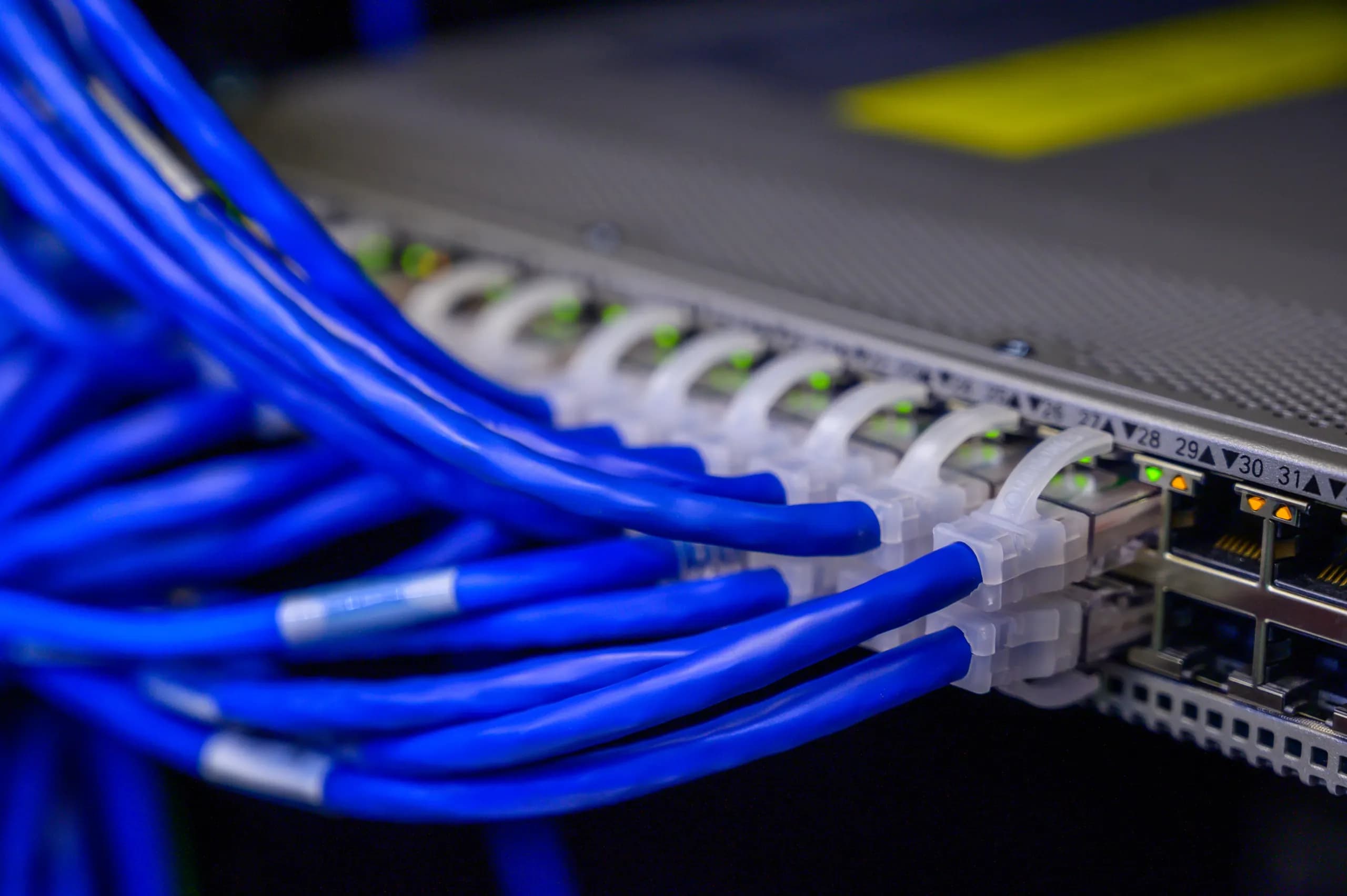
Why Jitsi network configuration breaks for some users and not others
Network configuration decides whether media flows in a Jitsi Meet deployment. Open ports, the public addresses the videobridge advertises, a valid certificate, and a TCP or TURN fallback together determine whether audio and video reach each participant. A deployment that works on the office LAN can fail for remote staff or guests for reasons unrelated to the application itself. Office users reach the videobridge directly on the local network, while remote users cross home routers, corporate firewalls and proxies, and any of those can block or rewrite the traffic.
The failure pattern is what makes this harder than it looks. The web app loads over 80/TCP and 443/TCP, so the page appears and the participant joins the room, but audio and video depend on a separate media path. A user may see other participants listed and hear nothing, or see a black tile. Because the interface loads, support teams often start by checking the application when the cause sits in the network path or the certificate. The Jitsi handbook says HTTPS with a proper domain certificate is necessary for working audio and video and warns that self-signed certificates cause problems, especially with mobile clients, so a certificate fault can look the same as a firewall fault.
Port needs also differ by install path. The Debian and Ubuntu quick start requires 80/TCP, 443/TCP and 10000/UDP open, with 5349/TCP for TCP fallback and 3478/UDP for STUN listed as optional. The Docker setup runs separate web, prosody, jicofo and jvb containers, and its port expectations should be checked on their own rather than copied from the Debian list. Confirm the Docker requirements against the handbook for the release you deploy, map each port to the container that uses it, and check whether a load balancer or reverse proxy in front of the web server changes what the public side needs.
This page covers the decisions, build order, verification and diagnosis for that path. It addresses which public address the videobridge advertises, how the certificate is issued and renewed, when to open 5349/TCP as a fallback, and whether a TURN service is needed for restrictive networks. It also explains how to test from inside a corporate network and how to separate signaling failures from media failures. Ask your network and security teams early which egress rules apply to guest and remote traffic, because those rules often decide who gets audio and video as much as the Jitsi settings do.
Which Jitsi components and ports carry the traffic
Jitsi Meet spreads each meeting across a web server, a signaling server, a conference focus and one or more media routers. Each part owns a different slice of the traffic, so a firewall rule that looks correct for one component can still break another. The cards below map each component and port to what depends on it and what fails when it is blocked.
Web server on 80 and 443
The web server, nginx or Apache, serves the Jitsi Meet app to browsers over 80/TCP and 443/TCP. Port 80 is commonly used for redirects and certificate validation, while 443 carries the app and the signaling path that runs through it. The Jitsi handbook says HTTPS with a proper domain certificate is necessary for working audio and video and warns that self-signed certificates cause problems, especially on mobile clients. If 443 is blocked, users cannot load the meeting at all. Check that both ports reach the host from the networks your users sit on, and that the certificate matches the name users type.
Prosody signaling behind the proxy
Prosody is the XMPP server that handles call signaling: room membership, participant presence and the messages that set up each conference. In the standard layout, the web server proxies these connections, so browsers reach Prosody through the same 443/TCP path rather than through a port of its own. In the Docker setup it runs in the prosody container. When this path breaks, the page may load but users cannot enter a room. Check the proxy rules in the web container and confirm the prosody container is healthy before testing media.
Jicofo and conference assignment
Jicofo, the conference focus, assigns each conference to a videobridge and tells participants where to send their media. It talks to Prosody and the bridges over your internal network and does not carry the audio and video itself. In the Docker setup it runs in the jicofo container. When Jicofo cannot reach Prosody or a bridge, meetings may start without any media path, so review its logs and internal connections before changing public firewall rules. Confirm these internal paths against your own topology and allow them explicitly in host and network policy.
Videobridge media on 10000/UDP
Jitsi Videobridge routes the encrypted audio and video between participants, and it needs 10000/UDP open for that traffic. The Debian and Ubuntu quick start lists this port as required. If it is blocked, users can join, see the interface and still get no audio or video, which is the most common symptom to diagnose. In the Docker setup, the jvb container owns this port. Confirm that the bridge advertises a public address that clients can reach, especially when the host sits behind NAT.
TCP fallback and STUN ports
Port 5349/TCP serves as the TCP fallback for media on networks that restrict UDP, and it only works when the bridge or TURN service is configured to listen there. Port 3478/UDP is optional and supports STUN, which helps clients discover their public address. If 3478/UDP is blocked, direct UDP media on 10000/UDP may still work, but restrictive corporate networks often need the TCP path. Confirm each listener and its firewall rule with your own configuration and test from a network that resembles your most restrictive users.
Host requirements and container mapping
The Debian and Ubuntu quick start supports Debian 12 (Bookworm) or newer and Ubuntu 24.04 or newer, and it requires OpenJDK 17 on the host. Treat these as reference points for the host, and confirm the current support matrix in the Jitsi handbook before you build. The Docker setup separates the web, prosody, jicofo and jvb containers, so firewall rules should follow the container that owns each port. Record that mapping in your change request so reviewers can see which component each rule serves.
Decisions to make before opening any ports
This table compares the network options for a self-hosted Jitsi Meet deployment and the ongoing work each one adds. Read each row as a decision: the option, the conditions where it fits, and what it asks of your firewall, certificates and servers. Most teams start with direct UDP on 10000 and add fallback paths only for users who need them, so confirm your firewall policy before choosing.
| Option | When it fits | Operational cost |
|---|---|---|
| Direct UDP media on 10000 | Users can send outbound UDP and each videobridge has a reachable address. | One inbound opening per videobridge. Request a firewall change covering every bridge. |
| TCP fallback on 5349 | Some users cannot send UDP but can reach a TLS port. Enable and test the fallback on the bridge first. | Another inbound port to approve. Certificate renewals must cover the fallback hostname, so a lapse affects these users. |
| TURN relay for restrictive firewalls | Corporate firewalls or proxies block both direct and TCP media paths. Confirm what your chosen relay supports. | An extra host to patch, monitor and certificate. Confirm supported transports, ports and authentication with the relay's documentation. |
| Dedicated public IP per videobridge | Each bridge can hold its own address and inbound rules are simple to publish. | Each bridge needs its own address and firewall rule. Addresses add cost per bridge, and changes need network review. |
| NAT with explicit address settings | Bridges sit behind a shared edge with port or address mapping that you control. | Mapping and advertised addresses must be configured and retested after any network change. Wrong addresses stop media even when ports are open. |
| Debian packages or Docker | Debian packages suit teams managing Linux hosts directly. Docker suits teams already running container hosts. | Debian: patch each host and firewall it directly. Docker: port publishing and container networking must match the firewall rules, and images need their own update cycle. |
How a Jitsi participant's media path gets chosen through NAT
When a participant joins a Jitsi Meet conference, the browser and the videobridge do not simply open a connection to each other. They run an interactive connectivity process in which each side gathers a list of candidate addresses it might be reachable on, exchanges that list through the signaling path, and then tests which pairs actually carry traffic. The browser typically offers its local addresses and any addresses learned from a STUN lookup, while the videobridge offers the addresses it is configured to advertise. The pair that succeeds becomes the media path. For a network engineer, the key point is that the videobridge's advertised address is only as good as the configuration that defines it.
A videobridge running behind network address translation sees a private address on its own interface, but remote participants need an address they can route to. If the bridge advertises its internal address, a participant on the public internet will send packets to a destination that does not exist from their side, and the call may connect the signaling layer while audio and video never arrive. This is the classic symptom of a bridge that joins successfully but shows no media. Confirm the exact NAT and public address settings for your Jitsi release in the Jitsi handbook, since the names and the way they are supplied have changed across versions and installation methods.
Whether a participant connects over UDP, falls back to TCP, or cannot connect at all depends on what the network between them and the bridge permits. Media is preferred over UDP, because real-time audio and video tolerate loss better than retransmission delay. Where a corporate firewall or proxy blocks outbound UDP, the client may only succeed by tunneling media over TCP, which works but usually with higher latency and less headroom under load. Where TCP to the relevant port is also blocked, a TURN relay on an allowed port is the remaining route, and where even that is blocked, the participant cannot connect. Ask your network team which of these three outcomes applies to each office and remote-access segment before you test with real users.
Encryption does not change this picture. According to the Jitsi security page, all Jitsi Meet audio and video is encrypted on the network with DTLS-SRTP, and the videobridge decrypts packets in memory only while routing them. The network work described in this section therefore concerns reachability, not confidentiality. Opening paths for media does not weaken encryption, and a blocked path does not expose content. Your security review should still treat the bridge's exposed UDP and TCP ports as an attack surface, which the hardening section covers in more detail.
Before go-live, run a short reachability test from each network segment that will host participants, using a meeting with at least two participants on different networks and a check of which candidate pair was selected in the browser's connection statistics. Record the path for each segment, including whether it used UDP, TCP or a relay. Ask your implementation partner or internal team to document the advertised address for each bridge and to confirm it matches the public address the firewall forwards. Segments that only reach the service over TCP should be flagged for capacity review, not treated as failures.
Build sequence for Jitsi ports, NAT and fallback
This sequence takes the network from an inventory of where people join to a tested firewall rule set. Each step ends with a check, so a problem shows up at the port or address where it starts. The platform team works with the network owner throughout.
Inventory the networks where users join
Before opening any port, list every network from which people will join: office LANs, home broadband, guest Wi-Fi and restrictive corporate networks that inspect or block traffic. For each one, record whether outbound 443/TCP, UDP media traffic and STUN are allowed, and who controls the network. The network owner or the team that runs the office firewall should confirm the list. This step is done when every network has a row showing which paths it allows and the team has agreed which networks will be included in the final join tests.
Set the domain and install a valid certificate
Point a DNS name at the web tier and install a certificate for that exact name, issued by an authority that participants' devices trust. The Jitsi handbook states that HTTPS with a proper domain certificate is necessary for working audio and video and warns that self-signed certificates cause problems, especially with mobile clients. The platform engineer does this during the Debian or Docker install. Check by opening the site in a browser on a laptop and on a phone, confirming there is no certificate warning and that the certificate matches the domain name.
Open 80/TCP and 443/TCP to the web tier
Allow inbound 80/TCP and 443/TCP to the web server from the networks listed in the inventory. The Jitsi Debian and Ubuntu quick start lists both ports as required. Port 443 carries the HTTPS connection the browser uses to load the meeting app. From a host outside your perimeter, load the site over HTTP and HTTPS and confirm that the page loads over HTTPS with the valid certificate and that port 80 responds the way your web configuration intends. The network team and platform engineer sign off on this check together.
Open 10000/UDP and set each bridge's public address
Allow inbound 10000/UDP to every videobridge, because this port carries the audio and video media path. A bridge behind NAT must advertise its external address, so set the public address for each bridge in its configuration to the address your firewall forwards to it. Confirm the address on each bridge before testing. Check it from outside the network with a UDP test tool or a test join from an external connection, and confirm that media flows and that the address shown in the configuration matches the public IP your firewall forwards.
Configure 5349/TCP for TCP fallback
Enable 5349/TCP as the fallback path for clients on networks that block UDP. The Jitsi quick start lists this port for TCP fallback. Confirm with the platform engineer that the bridge configuration exposes this port and that the firewall forwards it to the same bridge clients reach over UDP. Test by joining from a network where 10000/UDP is blocked, either by a test firewall rule or a network you control. The step is complete when the participant can send and receive audio and video over the fallback path.
Add a TURN or STUN path where needed
Where networks still block media after the fallback is in place, add a relay path. The Jitsi quick start lists 3478/UDP for STUN as optional, so decide whether your inventory requires it. Choosing and configuring a TURN server is a separate decision that depends on your network policy, and the team should confirm the setup against the Jitsi handbook for the version being deployed. Check by repeating the restricted-network join from the inventory and record which path succeeded for each network.
Record the firewall rule set
Write every inbound and outbound rule as one table with source network, destination host, protocol, port, purpose and owner. Include 80/TCP, 443/TCP, 10000/UDP, 5349/TCP and any STUN or TURN port you chose, along with the public address each bridge advertises. Store the table with the change record so that upgrades and new bridges are checked against it. The step is done when a second engineer can read the table and reproduce the rules, and a test join from each inventoried network succeeds.
How network setup differs by deployment model
On a single host, the web server, Prosody, Jicofo and one videobridge run on the same machine, so all media flows through one address. The Debian and Ubuntu quick start lists the ports users must reach: 80/TCP and 443/TCP for the web app and certificate validation, and 10000/UDP for media. TCP fallback uses 5349/TCP, and STUN on 3478/UDP is optional.
- Port exposure: allow inbound 80/TCP, 443/TCP and 10000/UDP. Add 5349/TCP only if you enable TCP fallback, and 3478/UDP only if you use STUN.
- NAT handling: if the host sits behind a router, forward 10000/UDP to the host and set the public address in the configuration so the bridge advertises the external IP to clients.
- Fallback: users on networks that block outbound UDP can only join with media if 5349/TCP is reachable. Without it, they may connect with no audio or video.
- Certificate: use a certificate issued for the public domain. Self-signed certificates cause problems, especially for mobile clients.
Before you open ports, confirm that the operating system is Debian 12 or newer or Ubuntu 24.04 or newer, that cloud security groups and host firewalls allow the ports above, and that the DNS name users open resolves to the public address the bridge advertises.
The official Docker setup runs web, prosody, jicofo and jvb in separate containers. Port handling moves from the host into container port publishing and the .env file, so a mismatch between the published port and the advertised address is a common source of one-way or silent media. Since stable-11146, the containers run rootless with read-only filesystems, which affects where writable data is stored and which ports can be bound.
- Port exposure: publish the web container's HTTP and HTTPS ports and the jvb media port on the host. The jvb container must be reachable on 10000/UDP from clients.
- NAT handling: set the public address in .env to the address clients actually reach. If the host sits behind NAT, forward 10000/UDP to the Docker host, not only to the container network.
- Fallback: TCP fallback on 5349/TCP needs its own port mapping. Confirm it is published and reachable, since a mapped web port does not imply the fallback port is open.
- Host firewall interaction: Docker writes its own firewall rules, which can bypass rules set with some host firewall tools. Verify the effective rules after each restart.
- Rootless operation: confirm that your container runtime version supports rootless mode and that the ports you publish can be bound without elevated privileges.
Before you deploy, confirm the Docker and Compose versions you run, the public address and port values in .env, and that the firewall rules you verify are the ones the host enforces after a reboot.
The scalable setup guide says the default install is already configured for horizontal scaling, so more videobridges can be added as separate machines. Each bridge then needs its own network identity. Jicofo assigns a conference to a bridge, and clients send media directly to that bridge, so every bridge's media port must be reachable from users. The guide itself warns that scalable infrastructure is not a task for beginning Jitsi administrators and recommends configuration management tools such as Ansible or Puppet.
- Port exposure: each bridge exposes 10000/UDP publicly. The central server keeps 80/TCP and 443/TCP for users, and the bridges must reach the central server over the internal network.
- NAT handling: each bridge needs its own correct public address. If bridges sit behind shared NAT, each one needs a distinct, reachable port mapping that matches what it advertises.
- Fallback: TCP fallback must be configured on every bridge that clients may reach. A bridge without it cannot serve users on UDP-blocked networks.
- Sizing: the scalable guide suggests 4 CPU and 8 GB RAM for the central server, and 4 or 8 CPU with 8 GB RAM for each videobridge.
Before you add a bridge, confirm that the addresses registered with the central server match each bridge's public address, that the internal link between hosts is open, and that the configuration is managed in version control so every bridge is built the same way.
On an air-gapped or internal-only network, no public address exists and users reach the server only from inside the network. Internet-facing assumptions, such as public STUN or TURN servers, external DNS, or a publicly trusted certificate, do not hold. Everything the browser and bridge need must resolve and connect on internal addresses, and client devices must trust the internal certificate authority.
- Port exposure: expose 443/TCP for the web app and 10000/UDP for media only on internal interfaces. Nothing needs inbound access from the internet.
- NAT handling: no public NAT step applies, but the bridge must advertise the internal address that clients use. A mismatch between the DNS name and the advertised address typically results in joins with no audio or video.
- Fallback: clients on network segments that block UDP need 5349/TCP permitted internally. If you run an internal TURN server, it must be reachable from every segment that needs it.
- Certificates: issue the certificate from your internal CA and install the CA on every browser and mobile client. Confirm this with a test device on each segment.
- External services: confirm whether any external STUN or TURN server is configured and whether the internal network can reach it. If it cannot, remove it from the configuration.
Before go-live, confirm the internal DNS records, the certificate chain on each client type, and which network segments can reach the bridge's media port.
Making Jitsi work through restrictive corporate firewalls and proxies
A correctly built Jitsi server can still fail for users on a restrictive corporate network. The media path depends on the network between each participant's browser and the videobridge, not only on the server. The Debian and Ubuntu quick start asks for 80/TCP and 443/TCP for the web app, and 10000/UDP for media. It also lists 5349/TCP for TCP fallback and 3478/UDP for STUN as optional. If the firewall blocks outbound UDP, inspects TLS, or allows only web ports, the meeting page may load and users may even see each other's names while audio and video never start. That pattern points to the network path, which is where the team should look first.
When UDP cannot reach the bridge, the client needs another way to carry media. The quick start names 5349/TCP for that TCP fallback, and that port is also the TLS port commonly used for TURN relays. A TURN server is needed when the direct route is blocked and the only permitted path leaves through a relay or a proxy. Ask your network team which outbound ports and destinations are permitted from user subnets, whether 5349/TCP is among them, and which hosts the relay address must resolve to. Confirm how the Jitsi version you deploy chooses between direct UDP, TCP fallback and relayed paths, and check that choice in your own test rather than assuming it.
TLS inspection deserves a direct question before the pilot. A proxy that decrypts and re-encrypts HTTPS traffic can interfere with the WebSocket connections used for signaling and with the TCP fallback path. The Jitsi handbook says HTTPS with a proper domain certificate is necessary for working audio and video, and warns that self-signed certificates cause problems, especially on mobile clients. Ask the network and security teams whether inspection applies to the meeting domain, whether it can be bypassed for WebSocket and media connections, and whether the inspection certificate is trusted by every browser and device your staff use. An unanswered inspection question is a common reason a pilot passes in the lab and fails on the corporate network.
The only reliable test is one run from the networks your staff actually use. A lab network with open outbound access tells you little about the office guest Wi-Fi, branch offices, home broadband, corporate VPN, or a phone on mobile data. Build a short test matrix with those networks, and run calls with at least two participants on different networks. For each call, check joining, audio, video and screen sharing, and record which path the session used if your logs or browser diagnostics show it. Share the results with the network team so that any blocked port or inspection rule is fixed with evidence, and repeat the matrix after any firewall or proxy change.
What drives the network work and how to keep it contained
This table lists the factors that most change the network and firewall work for a self-hosted Jitsi Meet deployment, how each one adds effort and one practical way to contain it. Read each row as a question to answer before any change request is written. The main takeaway is that port, NAT and certificate decisions made once for a standard host profile leave fewer exceptions for reviewers to approve.
| Driver | How it raises effort | How to keep it contained |
|---|---|---|
| Number of sites and networks | Each site has its own egress rules, NAT and proxy policy, so each one needs its own path check and sign-off before users can join. | Standardize the ports and host profile once, then document only the per-site differences in one shared table. |
| Number of videobridges and public addresses | Each bridge needs UDP 10000 reachable and must advertise the correct public address, so every added bridge multiplies firewall rules and configuration checks. | Build every bridge from one template with configuration management, such as Ansible or Puppet, so the address and port settings are identical. |
| NAT layers and load balancers | Extra NAT hops and load balancers in front of the web server can alter the public address or block the direct UDP media path that bridges use. | Draw each hop on one diagram, keep media on a direct UDP path where policy allows, and confirm the advertised address after every change. |
| Corporate proxy or TLS inspection | Inspection re-signs TLS traffic, which can break the WebSocket connection and the TCP fallback on 443/TCP or 5349/TCP, and it can add latency to every session. | Agree with the security team in advance whether Jitsi hostnames bypass inspection, then test from inside the inspected segment before go-live. |
| Certificate and DNS changes | Jitsi needs a proper domain certificate for working audio and video, and a renewal or hostname change affects the web server, clients and any proxy trust store. | Use one hostname, automate certificate renewal, and record the DNS and certificate steps as a single cutover checklist. |
| Change control lead times | Firewall, proxy and DNS changes pass through approval queues, so most of the elapsed time is waiting for reviewers rather than engineering work. | Submit one consolidated change request that lists each host, port, direction, protocol and owner, and confirm the review cycle with the change board early. |
| Device and browser combinations | Audio and video behavior varies across browsers, desktop apps, mobile clients and managed devices, and end-to-end encryption is limited to Chromium 83+ and the Electron client. | Agree a test matrix up front that covers the browsers and devices in use, and run it from the most restrictive network segment first. |
Limiting exposure while keeping media reachable
Limiting exposure means opening only the paths that users and media need, then confirming that nothing else answers from outside. The cards cover firewall rules, internal placement of signaling services, administrative access, documentation, certificates and container hardening. The videobridge decrypts media in memory only to route it and never stores it, and end-to-end encryption covers audio, video and screen sharing in supported browsers only, so network path settings still need their own review.
Open only the ports the topology needs
The Debian and Ubuntu quick start lists 80/TCP and 443/TCP for the web app, and 10000/UDP for media through the videobridge. It also lists 5349/TCP for TCP fallback and 3478/UDP for STUN as optional. Confirm which of these your chosen topology actually requires, close everything else at the host firewall and any perimeter device, and test each rule from an external host.
Keep Prosody and Jicofo internal
Prosody, the XMPP server, and Jicofo, the conference focus, handle signaling and should not be reachable from the internet. Only the web entry point and the videobridge media port should face outside your network. Scan the public address from outside to confirm these services do not respond, and repeat the check whenever you split components onto separate servers.
Restrict administrative access
Limit SSH, container management and any Prosody or Jicofo administrative interfaces to a named management network or jump host. Use key-based login and multi-factor authentication where your policy requires it. Confirm which hosts and endpoints exist in your build, since the Docker setup runs web, prosody, jicofo, jvb, jigasi and jibri as separate containers, each with its own exposure.
Document each rule with its reason
For every opened port, record the source range, destination, protocol, owning team, the component it serves and the reason it is needed. Include rules for STUN, TCP fallback and any TURN relay you add. Written reasons let your security team remove unneeded rules safely during reviews and give auditors evidence of least exposure. DeployOpen prepares that evidence, but independent auditors issue any audit report.
Certificate handling and renewal
The Jitsi handbook states that HTTPS with a proper domain certificate is necessary for working audio and video, and it warns that self-signed certificates cause problems, especially with mobile clients. Confirm which certificate authority you use, who owns renewal, how renewal is automated on the web tier, and how any TCP fallback or TURN endpoint receives its certificate before expiry.
Rootless containers and read-only filesystems
From stable-11146 onward, the official Docker containers run rootless with read-only filesystems. Confirm that your release is at or above that build before relying on this protection. Check that any volume you add for configuration or logs is writable only where needed, and test how far a compromised container could write before you approve the deployment.
Diagnosing a user who joins Jitsi with no audio or video
Work through these checks in a fixed order and stop at the first failure, because the cheapest causes are also the most common. Start with the certificate. The Jitsi handbook states that HTTPS with a proper domain certificate is necessary for working audio and video, and it warns that self-signed certificates cause problems, especially with mobile clients. On the affected client, load the meeting URL and confirm the browser shows no trust warning, that the certificate covers the exact hostname, and that the chain is complete. Next, confirm the browser has camera and microphone permission for the site, and that the operating system allows that browser to use the devices. A user who joins with no media often has a blocked device rather than a network fault.
The network checks come next. The Debian and Ubuntu quick start requires 443/TCP for the web app and 10000/UDP for media, with 5349/TCP for TCP fallback and 3478/UDP for STUN as optional. Test whether UDP 10000 reaches the videobridge from the user's network. A successful TCP connection on 443 proves nothing about UDP, so run the UDP test from the affected segment or a host on it. Then check the public address the videobridge advertises. If a bridge behind NAT advertises a private or stale address, clients cannot reach it even when the port is open. Compare the advertised address with the NAT mapping your network team has documented, and confirm the setting name and procedure against the handbook for your installed release.
If UDP fails, check whether a TCP connection to 5349 completes from the same network. Failure here points to a firewall or egress rule, not to Jitsi itself. Then examine proxies and TLS inspection. Inspection devices that re-sign certificates can break the encrypted connection that clients use for fallback, and some proxies stall long-lived connections. Ask the security team whether the meeting domain is excluded from inspection. Finally, eliminate device-specific causes: try a second browser, a second device, a different network, and the same meeting with VPN switched on and off. Browser extensions, endpoint policies that restrict WebRTC, and outdated browsers can each produce the same symptom. Record each result so the escalation contains facts.
Verify the fix before closing the ticket. Join test meetings from every network type the organization uses, including office wired and wireless, guest Wi-Fi, home broadband, mobile data, and VPN. In each meeting, confirm media flows in both directions: each participant should hear and see the other. Repeat the test from a network that blocks 10000/UDP to confirm that TCP fallback on 5349 carries the call. Also define the failure state. If no path works, the user should see a clear message that the connection could not be established, the approved alternative for that meeting, and the support contact, rather than joining silently with no media. Confirm the exact wording and behavior in your deployed version, and document it so help desk staff and users see the same result.
What to monitor, document and revisit after go-live
This table lists the recurring checks and documentation that keep Jitsi reachable after go-live, with the evidence to keep and the team that owns each item. Read each row as a standing task with a named owner, and treat a failed external test or an unexplained join failure as a trigger to update the runbook and test matrix. The main takeaway is that port reachability and certificate expiry change over time, so they need scheduled checks and a re-test after every upgrade.
| Item | What to check or record | Evidence to keep | Owner |
|---|---|---|---|
| External reachability | Test 10000/UDP and 5349/TCP from outside the corporate network on a schedule and after firewall changes | Dated test results from an external vantage point | Network team |
| Certificate expiry alerts | Alert well before the meeting domain certificate expires, since audio and video depend on a valid certificate | Alert configuration and renewal log | Platform team |
| Firewall rule review | Confirm open ports and bridge public addresses still match the port map, and remove rules for retired servers | Signed-off rule review with change tickets | Security team with network team |
| Failed join logging | Capture failed joins and connection failures, grouped by network, to spot restrictive networks needing TCP or TURN fallback | Periodic summary of failure patterns and actions taken | Platform team, reviewed by service owner |
| Port map and fallback documentation | Record 80/TCP, 443/TCP, 10000/UDP, 5349/TCP, optional 3478/UDP, public addresses and the TCP or TURN fallback path | Current runbook section with the review date | Platform team, approved by service owner |
| Re-test after upgrades | After any Jitsi Meet, Prosody, Jicofo or videobridge upgrade, rerun connectivity and join tests on each network type | Test report tied to the upgraded build versions | Platform engineering |
| Test matrix updates | Add each new network, proxy or VPN to the test matrix and run joins through it before users depend on it | Updated matrix with results for each new path | Network team with service owner |
Questions teams ask before configuring Jitsi networking
Can our own team configure Jitsi ports and NAT in-house?
Yes, if your team already runs Linux servers, reverse proxies and firewall changes under change control. The base requirements are small: the Debian 12 or newer and Ubuntu 24.04 or newer quick start needs 80/TCP and 443/TCP for the web app and 10000/UDP for media to the videobridge. The handbook lists 5349/TCP for TCP fallback and 3478/UDP for STUN as optional. The harder part is the public address. A videobridge behind NAT must advertise an address that clients can reach, so the NAT mapping and the advertised IP must agree. Confirm with your network team who owns the edge firewall, whether 10000/UDP can be opened inbound, and whether outbound UDP is permitted from employee networks. Many in-house teams handle the basics well and bring in outside help when corporate proxies or multi-site NAT complicate the design.
What does the work need from our network and security teams?
Network and security teams need to approve the port plan, the public address and the certificate before anyone changes the servers. Network staff own the inbound rules for 443/TCP and 10000/UDP, any NAT mapping to the videobridge, and the decision on whether 5349/TCP is exposed for TCP fallback. Security staff review who can reach the web server, how TLS certificates are issued and renewed, and which authentication method is set, whether that is JWT tokens or another option configured in the Docker .env file or Debian configuration. Expect them to ask about logging, patch ownership and whether media passes through a proxy they already inspect. Agree on a change window and a test plan that uses the corporate network paths employees will use, and record each decision so the change record matches the live configuration.
Is a TURN server always required for Jitsi Meet?
No. Many participants can connect directly to the videobridge, so a TURN relay is needed only for people whose networks block the direct media path. The supplied guidance lists 10000/UDP for media and 5349/TCP as the TCP fallback port, so a relay becomes relevant when those paths are closed for some users, such as guests on restrictive hotel or conference Wi-Fi. Whether you need one depends on your user population. Ask your network team to test from the networks your staff, partners and guests actually use, and count how many sessions fail to get audio or video. A TURN relay also adds a service you must operate, secure and size for bandwidth, so the decision carries its own ongoing cost. Confirm the TURN and TCP fallback design against your own test results, because behavior varies by client network.
How do certificates affect audio and video in Jitsi Meet?
A valid certificate for your own domain is a prerequisite for working audio and video, and a self-signed certificate is a common cause of failures. The Jitsi handbook states that HTTPS with a proper domain certificate is necessary for working audio and video and warns that self-signed certificates cause problems, especially with mobile clients. A certificate fault can look like a network fault: users join the room, see the interface, and get no sound or picture. Check the certificate chain, the expiry date, whether the hostname matches and whether managed devices trust your certificate authority. Renewal matters too, because an expired certificate can break meetings that worked the week before. Ask your security team who issues and renews the certificate, and how that renewal is monitored and tested.
What drives the cost and timeline of Jitsi network setup?
The main drivers are how many networks must work, how many sites and user groups sit behind restrictive controls, and how mature your firewall and certificate processes already are. Costs fall into three groups: internal time from network, security and identity staff; external effort for design, configuration and testing; and infrastructure, such as a TURN relay host and the bandwidth it uses. Relay bandwidth recurs and grows with the share of media that passes through the relay, so ask how your traffic will be routed. Timelines extend when change approval, multi-site NAT, corporate proxies or certificate authority processes are involved. In a fixed-scope engagement, the written scope sets the boundary, so confirm which networks, sites and test scenarios are included. DeployOpen does not publish prices, so a quote follows from the written scope, and your network team can confirm the lead time for firewall changes.
What should we ask a partner to include in a networking quote?
Start with the written scope: the networks, sites and user groups covered, and whether the work includes TURN, TCP fallback and certificate setup. Request the list of ports and firewall rules you will need to open, along with the public address and NAT decisions behind them. Ask who performs each test and what evidence you receive, such as connection results from restrictive networks and a runbook for diagnosing users who join without audio or video. Clarify which costs are one-time, such as design and initial configuration, and which recur, such as relay hosting, certificate renewal, patching and support. Confirm who owns changes after handover and how network changes on your side will be handled. Make sure the quote states the assumptions about your environment, so any change in scope is visible before work begins.
How do we test Jitsi from restrictive networks?
Test from the networks your users will actually use, with actual devices and browsers, and record the results for each one. Start on a clean internal network, then move to guest Wi-Fi, a corporate network with a proxy or inspection layer, a mobile connection and a network that restricts UDP where possible. For each scenario, confirm that the participant can join, hear and be heard, see video and share the screen, and that the connection path is the one you expected. Check that 443/TCP is reachable for the web app, and whether 10000/UDP works or the session falls back to TCP on 5349. Include mobile clients in the test plan, since the handbook flags certificate problems on them. Keep a short diagnostic checklist covering DNS, certificate validity, firewall logs and the browser console, so support can separate network faults from configuration errors. Repeat the tests after each firewall or certificate change.
How DeployOpen scopes, builds and hands over Jitsi network work
DeployOpen plans the network path for a self-hosted Jitsi Meet deployment before anything is opened or installed, covering the ports, public address settings for videobridges, and the TCP fallback and TURN options that restrictive corporate networks often need. Work runs inside your own infrastructure, under a written fixed scope, and ends with documented settings and a runbook your team can operate.
How we scope
- The written scope lists each port, public address and TURN or TCP fallback decision for your Jitsi network path.
- We map which users sit behind restrictive firewalls, proxies or NAT, and which need TURN relay.
- Engagements are fixed-scope, and ongoing support is available as a retainer after handover.
How we build
- We open the required ports (80/TCP, 443/TCP, 10000/UDP) and set up the public IP and NAT settings for each videobridge.
- We configure 5349/TCP fallback and optional 3478/UDP STUN where corporate policy allows them.
- We install and verify a domain certificate from your CA, since self-signed certificates cause problems on mobile clients.
How we hand over
- A test matrix covers join, audio, video and screen sharing from desktop browsers, mobile apps and restrictive networks.
- A diagnostic runbook explains how to trace users who join a meeting but receive no audio or video.
- Documentation records every firewall rule, DNS record and TURN setting, with owners named for each change.
How we support
- Support covers Jitsi Meet, Prosody, Jicofo and videobridges staying on matching stable releases after handover.
- Firewall and certificate changes go through a documented review before they reach production.
- Ongoing support is available as a retainer, scoped in writing, for network changes and periodic re-testing.
