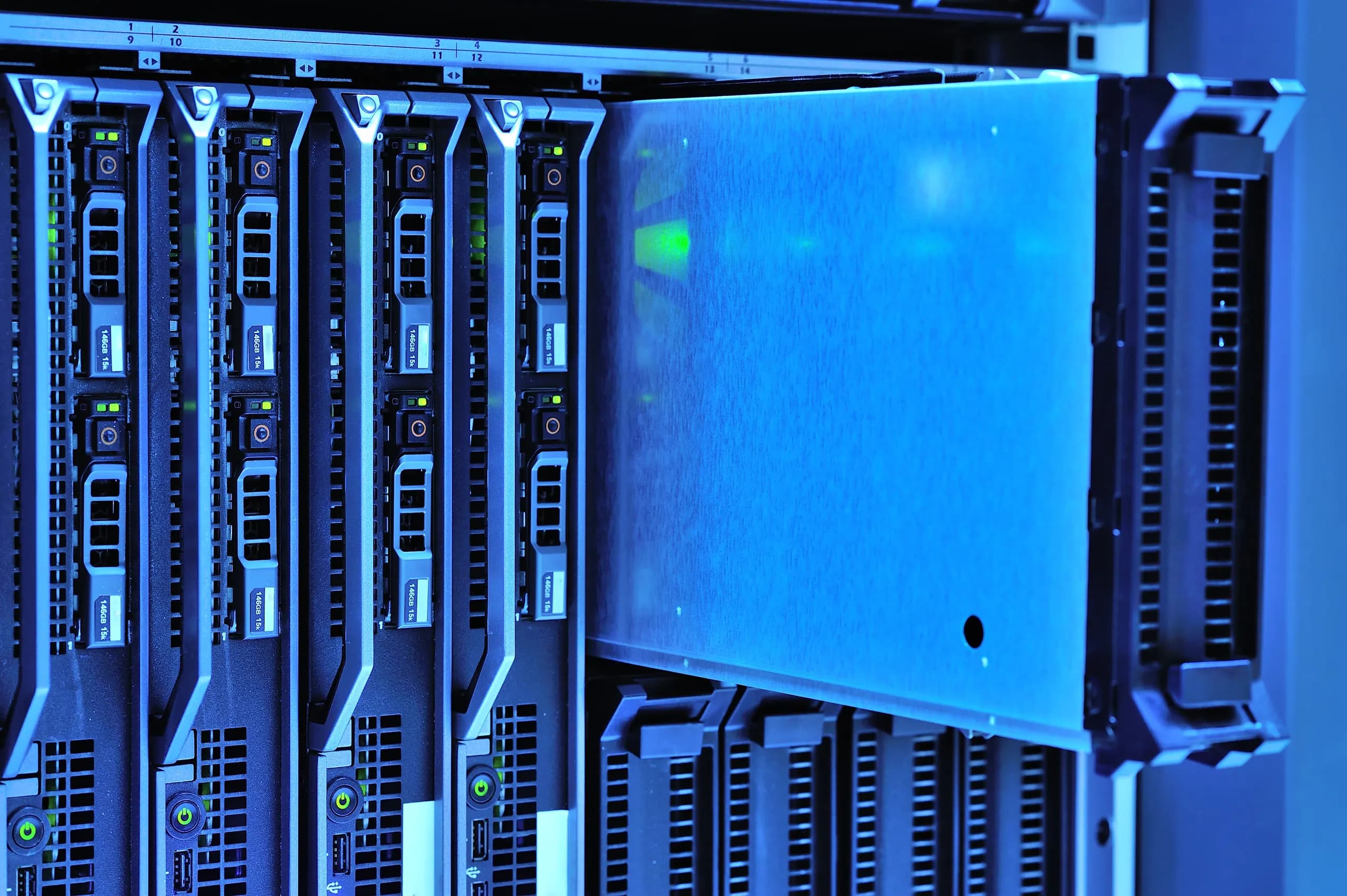
Moving ERPNext to a new server is a restore, a version match and a controlled cutover
If your team is leaving the hardware or cloud account that runs your ERPNext site, the short answer on effort is that the move is mostly a verified backup, a restore on a new bench and a matching of Frappe and app versions. The data itself is rarely the hard part. Effort rises with the number of custom apps, the volume of uploaded files, the amount of customization in scripts and print formats, and how many people depend on the site during the window. The work runs in your own infrastructure, so your cloud accounts, network and access controls stay with you. DeployOpen does not publish prices, and the effort and cost are set out in a written scope before work starts, so the questions below are the ones to settle first.
Start by inventorying what the site depends on: the Frappe and ERPNext versions, every custom app installed on the bench, the scheduler state, outbound email, and any integrations that hold tokens or callbacks. Then take a backup with bench backup --with-files so that the database dump and the public and private files are captured together. The backup command writes a compressed database dump under ./sites/{site}/private/backups by default, and it accepts custom backup paths. Keep the site's site_config.json and the encryption key it contains with the backup set, because stored passwords and some integration credentials cannot be read on the new server without the original key. Treat that file as a secret and confirm who holds it before the move begins.
On the new bench, install the same Frappe and ERPNext minor line and the same custom apps before restoring, then restore the database and files, run migrate, and check that background jobs, the scheduler and email queues behave as they did before. Plan the cutover as a short, announced freeze: stop writes on the old site, take the final backup, restore, verify logins and a sample of transactions, and only then move DNS and TLS. Confirm with your own engineers and the Frappe bench backup reference which flags fit your layout, and agree on a rollback point in case the new server needs to be abandoned.
What moves with a bench backup and what you must rebuild
This table separates what a bench backup with files carries to the new server from what you must configure yourself on the target. Read each row as a checklist: the first column names the item, and the other columns show whether the backup covers it and what to verify after restore. The main takeaway is that the database and files come across, but the server edge, mail, identity and scheduler settings often do not.
| Item | Covered by bench backup with files | What the new server needs |
|---|---|---|
| Site database | Yes, as a compressed database dump under the site's private backups folder | Restore on the new bench, then run migrate so the schema matches the installed app versions |
| Public and private files | Yes, when you use the --with-files flag | Confirm file permissions and that attachments open after restore; check size on disk before cutover |
| Site config and encryption keys | Not reliably covered by the default backup; copy site_config.json separately | Restore the same encryption key, or stored passwords and API secrets will fail to decrypt |
| Installed apps and versions | Not covered as versions; the dump records apps but not the exact Frappe and ERPNext releases | Install matching Frappe and app versions on the bench before restoring, then confirm with the bench version output |
| Custom scripts and customizations | Stored in the database, so Server Scripts and custom fields come across with the dump | Check that server_script_enabled is set on the new site if your version disables scripts by default |
| Scheduler and background jobs | Scheduler state is not a backup item; jobs are configured on the site and worker processes | Enable the scheduler and workers on the new bench, and disable them on the old site to avoid duplicate runs |
| Email accounts and outgoing mail | Email account records are in the database, but SMTP hosts, DNS records and mail relay access are not | Verify SMTP connectivity, sender domain records and bounce handling from the new network |
| LDAP and social login settings | Stored as site records, but the directory or identity provider must still accept the new callback and network path | Update redirect URIs, certificates and firewall rules for the new server address |
| TLS certificates and reverse proxy | Not covered | Issue certificates for the new hostname, configure the proxy and websocket paths, and set the site host name |
Documented tools for taking and restoring a bench backup
A rehost depends on getting a consistent copy of the database and files off the old bench and into the new one. The cards below cover the documented backup command, where its output lands, how to scope it, and what the restore depends on, so the cutover team can check each step before the old server is switched off.
The bench backup command
Run bench backup from the bench directory on the source server to create a compressed database dump for the site. Add the --with-files flag so the public and private file folders are included, since a database dump alone leaves attachments, print formats and uploaded documents behind. Take the backup while the site is in a known state, ideally with users locked out, so the database and files match each other.
Default backup location
By default the dump is written under sites/{site}/private/backups in the bench folder. Confirm that path on your source server before you copy it, because a backup that sits only on the machine being retired will not survive the move. Plan a transfer step that copies the dump, the files and the site config to the new server, and verify checksums or file sizes after each copy.
Custom backup paths
The backup command accepts an option to write output to a custom path. Use it when the default disk is small, when the backup must land on a mounted volume that the transfer job reads, or when your retention scripts expect a fixed directory. Document the path in the cutover runbook so the restore operator uses the same file set that was verified.
Including or excluding DocTypes
The backup command can include or exclude specific DocTypes. A full-site backup is the safe default for a rehost. Excluding DocTypes is a decision to make with the finance and operations owners, because a partial dump leaves records behind and changes what the new site contains. Record any exclusion in writing and reconcile it against the migration checklist.
Restoring on the new bench
The restore runs on a bench with the same Frappe and ERPNext versions and the same installed apps as the source. Create the site on the new bench, then restore the database dump and the file folders into it. Confirm the exact restore command options against the Frappe documentation for your version before running them, because options differ between releases.
The site config file
The site_config.json file in the site folder holds settings the restored site depends on, including database connection details and the encryption key used for stored passwords and tokens. Copy it with the backup and check that the new server uses the same key. A restore without the matching key can leave integration credentials and some stored secrets unreadable, so test a login to a connected account before cutover.
How the rehost runs from inventory to decommission
The sequence moves a self-managed ERPNext site to a new bench with matching versions, proves the restore before users return, and ends with a verified cutover and a retained, then decommissioned, old server. Each step closes with a check the team can sign off.
Inventory apps, versions and site configuration
Record the Frappe Framework version, the ERPNext version and every installed app with its exact release on the current bench, using the bench apps list on the source server. Capture the site config, the scheduler and background worker setup, the web server and TLS configuration, and any custom scripts or customizations. Confirm the target versions are on a version Frappe still supports, using the supported versions page. Done when the team holds a written manifest that the new bench must match, and the owner has approved it.
Build the new bench with matching versions
On the new Linux server, install the same Frappe Framework and ERPNext versions, then each companion app at the release listed in the manifest, using the bench command line tool. Install the database, Redis and the web stack, and set up the same Python and Node runtimes the source used. Create the empty site with its database engine settings and confirm the bench starts without errors. Done when every app reports the same version as the source and the bench serves a blank site.
Take a full backup with files on the source
On the source server, run bench backup with the files option so the compressed database dump and the public and private file directories are captured together. Copy the site configuration file with its encryption key, since stored passwords and some integration credentials cannot be read without it. Store the backup and the key in a location the new server can reach, and record checksums. Done when the team has verified that the archive opens, the file sizes match what the backup reported, and the encryption key is stored separately with restricted access.
Restore to a test site and verify
Restore the backup onto the new bench as a separate test site, then run the migrate command so the schema and app patches match the installed versions. Log in with a known administrator account, open a sample of documents, run a trial balance and a stock ledger report, and confirm attached files open. Check that saved passwords and integration tokens decrypt with the restored key. Done when the test site matches the source on agreed record counts and reports, and the team has logged each difference found and resolved.
Run a parallel check of data and logins
Keep the source live while the test site is exercised by named finance, stock and sales users. Test role-based access, login methods such as LDAP or social login if configured, email sending and scheduled reports against the test site. Compare key balances and open documents between the two sites, and record any difference with its cause. Done when each business owner signs off that their module works on the new bench and the discrepancy log is empty or explained.
Freeze, take a final backup and cut over DNS
Announce a write freeze on the source, disable user access, and wait for background jobs in the queue to finish. Take a final backup with files, restore it to the new production site, and run migrate again. Verify the scheduler and background workers are running on the new bench, then change the DNS record to the new server and confirm TLS certificates are valid for the hostname. Done when users reach the new site under the production name, a test transaction posts successfully, and the source is set to read only.
Verify scheduler and background jobs
After cutover, confirm the scheduler is enabled and running, that scheduled jobs such as recurring documents, email queue processing and reminders execute on time, and that failed jobs are visible in the error log. Check outgoing email delivery and any webhooks or integrations pointing at the old server, and update them to the new address. Watch the logs through the first business cycles the team agreed. Done when no unexplained failed jobs remain and every integration has been repointed and tested.
Retain then decommission the old server
Keep the source server and its backups for a retention period set by your records, audit and contract obligations, and confirm that period with your compliance and legal owners before starting. Disable the source scheduler and any remaining services so it cannot send email or run jobs against live data. When the period ends, securely delete the site data, remove credentials and the encryption key copies you no longer need, and record the decommission in your asset register. Done when the retention end date has passed, deletion is documented, and the asset register reflects the change.
Why the encryption key and scheduler state decide whether the restored site works
The site config file is the part of a restore most often left behind, and it decides whether the restored site works at all. The file, site_config.json under the site directory, holds the encryption_key that ERPNext uses to protect encrypted fields such as stored passwords and some integration credentials. The database dump does not contain this key, so a restore that copies only the database will load records that the new bench cannot decrypt. Copy the site config with the backup, keep the original key value unchanged, and confirm on the new server that the value matches the source before anyone logs in. If the key is lost, the reader should expect to re-enter those credentials by hand, and should confirm with the Frappe documentation how to handle that case for their version.
The scheduler and background workers are the second part of the restored state. Scheduled jobs, email queues, and many document automations run only when the scheduler is enabled on the site and the worker processes are running on the new bench. A site that serves pages but never sends email or closes periodic jobs is usually a scheduler or worker problem, not a data problem. Check the scheduler status on the new site, confirm the workers started under the supervisor setup, and compare the scheduled job list with the source. Pause the scheduler on the old server during cutover so the same jobs do not run twice.
Server Scripts need their own check. From version 15, Server Scripts are disabled by default and must be enabled with the server_script_enabled setting. If the source site relies on Server Scripts for document events or API endpoints, confirm that the setting is turned on for the new site, and that your own policy allows it. Frappe's Server Script documentation describes the setting. Do not assume a restored script runs because it appears in the list. Test one document event and one API call on the new bench before DNS moves.
What drives the cost and duration of a rehost
This table lists the factors that change how much work a rehost takes and which of that work ends after cutover. Read each row as a question to answer about your current bench before asking for a quote, since the largest items are usually file volume, custom code and the number of sites. Most of the effort is one-time, but custom scripts, authentication links and monitoring keep creating support work after the move.
| Driver | Why it changes effort | One-time or recurring |
|---|---|---|
| Number and size of apps | Each installed app must match the target version and its dependencies must install cleanly on the new bench | One-time to match, then recurring with each app update |
| Custom apps and forked code | Custom code must be copied, rebuilt and tested against the target Frappe and ERPNext versions | One-time to port, recurring to maintain |
| Volume of public and private files | Larger file sets lengthen transfer, checksum and restore steps and raise storage requirements on the new server | One-time |
| Number of sites on one bench | Each site needs its own restore, site config, domain and verification pass | One-time per site, with recurring checks if sites share a scheduler |
| Server Scripts and custom integrations | Python scripts, webhooks and API connections must be re-tested because outbound addresses, secrets and hostnames may change | One-time to re-verify, recurring when integrations change |
| LDAP or social login configuration | Directory connections, TLS certificates and OAuth redirect URLs usually point at the old hostname and need updating | One-time setup, recurring certificate and identity provider upkeep |
| Encryption keys and site config | Keys must be carried over exactly, or stored encrypted fields and credentials will not read correctly | One-time, but a key mismatch can recur as a failure during later restores |
| Dedicated test environment | A rehearsal restore on a separate server exposes version and data issues before the production cutover | One-time infrastructure and test effort |
| Downtime window and DNS cutover | The agreed window sets how much work runs in a single cutover, and DNS propagation affects when users reach the new server | One-time, with the scheduler and backup freshness to watch afterwards |
Questions teams ask before moving ERPNext to a new server
Can our own team move a self-managed ERPNext site to a new server?
Yes, if your team already runs the bench command line tool and has done a restore before. The core steps are a bench backup with files, a restore on a bench with matching versions, and a controlled DNS cutover. The work is less about the commands and more about checking that the new server matches the old one: the same Frappe and app versions, the original encryption keys, the scheduler and the background workers. Ask whether your engineers have rehearsed the restore on a copy of production data before the cutover window, since that rehearsal shows most of the surprises early.
What does a server move cost, and what drives the fee?
The cost is mostly labor, and it follows from the written scope. The main drivers are the number of sites and apps, the size of the database and file store, whether the new server is a different operating system or database version, how many custom apps and scripts must be verified, and how many rehearsal runs the cutover needs. One-time work covers planning, the rehearsal and the cutover. Recurring work only appears if you add ongoing support or upgrades. Ask any provider to itemize these components in the quote, so you can see which items your own team could take on.
How long does the cutover window need to be?
The window depends mainly on the size of the database and files, the number of sites and the time needed to verify the restored system. Because these vary widely between installations, no fixed duration applies to every site. The practical step is to measure the backup and restore time during a rehearsal on a copy of production data, then plan the window from those measurements. Remember that users must be stopped from writing to the old site during the final backup, so the window includes the backup, the transfer, the restore, checks and the DNS change.
What must we provide before the server move starts?
Plan to provide administrative access to the current and new servers, the database and file backups, the exact Frappe and app versions in use, the site configuration including encryption keys, and a list of custom apps, scripts and integrations. You also need DNS control for the cutover, a named business owner who signs off the verification checks, and a window agreed with the users. Missing app versions or keys are the most common reasons a restored site fails to start, so collect them before the rehearsal.
Why do Frappe and app versions and encryption keys matter so much?
A restored ERPNext site expects the same Frappe Framework and app versions that produced the backup, and the database fields and migrations depend on them. Encryption keys stored in the site configuration protect encrypted fields, so a restore without the original key can leave stored values unreadable. Check the versions of every installed app, not only ERPNext, and confirm that the new bench uses them. Use the Frappe supported versions page to confirm that the versions in use are still listed before you plan a change.
Is a move off Frappe Cloud handled the same way?
No, a move from Frappe Cloud has its own steps, including how you download offsite backups with database, public and private files and site configuration, then restore them onto a self-hosted bench. That path is covered in a separate sibling topic, Move ERPNext from Frappe Cloud to self-hosted. The steps on this page assume you already run a self-managed site and are moving it to different hardware or a different host. If you are unsure which applies, confirm where the site is hosted before requesting a quote.
Do we get a fixed price before the work begins?
Most engagements are fixed-scope. Scope, deliverables and timelines are agreed in writing before work starts, and a quote follows from that written scope. DeployOpen does not publish a price list. To compare providers fairly, send each one the same inventory of sites, apps, versions, data volumes, integrations and the cutover constraints, and ask for the deliverables and the verification steps in writing. Ask what happens if the rehearsal reveals a problem that changes the scope.
What usually goes wrong in an ERPNext server move
Most failed ERPNext moves come from a short list of causes: the new bench drifts from the old one, secrets do not follow the data, and the cutover leaves background work or mail running in two places. Each card below names one failure mode and the check that prevents it. Run these checks before the final backup, not after users report errors.
Version drift between benches
The new bench runs different Frappe or app versions than the old one, so the restored database fails migration or pages break after login. Record the Frappe, ERPNext and every custom app version and commit on the old bench, then install the same versions on the new bench before restoring. Confirm each version against the supported versions list, since an end-of-life release leaves no support path. Run the migrate step only after the versions match, and check the site in a staging copy first.
Lost or mismatched encryption key
The site config holds the encryption key, and without it stored passwords and API secrets in the restored data cannot be read. Copy site_config.json from the old site along with the backup, and keep it with the backup set rather than rebuilding it by hand. Check that the key on the new site matches the one in the original file before users sign in. Store a copy of the key in your secrets vault, since a backup without its key is incomplete.
Scheduler left disabled or double-running
The scheduler is paused on the new bench, or both old and new servers run it against the same data. Scheduled jobs such as recurring invoices, reminders and report emails then stop, or fire twice. Disable the scheduler on the old bench as the first cutover step, and enable it on the new bench only after DNS points to it. Verify the job queue on the new bench shows scheduled runs before you declare the move complete.
Files missing from the backup
A database-only backup restores records but not attachments, print assets or uploaded images. Users then see broken links on invoices and documents that rely on files. Take the backup with the files flag so that both private and public files are included, then compare file counts on the old and new sites. Check the file storage path on the new bench and confirm that attachments open before cutover.
DNS and TLS cutover delays
DNS changes take time to spread, and the new server may lack a valid certificate for the site name. Users may reach the old server for hours, which creates writes that do not exist on the new one. Lower the DNS record time-to-live well ahead of the move, issue the certificate on the new server before cutover, and test the site by hostname from outside your network. Plan a freeze on writes on the old site until the new site answers on the production name.
Email sent from a new IP
Outgoing mail from the new server can be rejected or spam-filtered because the sending address has no sending history. Password resets and invoice emails then fail silently for users. Confirm the sending domain's SPF, DKIM and DMARC records allow the new server, and ask your mail provider whether the new address needs to be authorized. Send test messages to several mailbox providers before cutover and check the outgoing email queue for errors.
Stale sessions and cached assets
Browsers and the cache keep assets or session data from the old server, so users see old pages or get logged out. Clearing the cache on the new bench and asking users to sign in again after cutover avoids most confusion. Rebuild the assets on the new bench, clear the site cache, and test a login from a browser that previously used the old server. Tell users in advance that they may need to sign in again.
When an internal team can run the move alone
An internal team can usually run this rehost alone when it already operates bench installs on Linux, has restored a site from a bench backup at least once, and runs a single site with stock apps and no custom code that depends on the server layout. In that case the work is mostly sequencing: take a backup with --with-files, copy the site's private and public files and site_config.json, rebuild the same Frappe and app versions on the new bench, restore, run migrations, and then move the scheduler and DNS. The main decision is whether the team can keep the source server running in read-only or idle state long enough to take a final backup that matches the cutover point. If it can, the in-house path is reasonable.
Several conditions move the work toward a partner's scoped engagement. Heavy customization, such as custom apps, server scripts that depend on the server_script_enabled setting, or patched core code, makes version matching harder because each app must be pinned to a compatible release on both ends. Many sites, multi-company setups, or a need to prove the move to auditors also raise the stakes. Regulated organizations often need written change records, rollback criteria, and evidence that encryption keys and site configuration were carried over intact, and a fixed-scope plan can define those deliverables before work starts. Confirm with your own change board which artifacts it will accept as evidence.
Before deciding, have the team check three things in its own environment: the exact Frappe and ERPNext versions in use against the supported versions page, whether any app is installed from a private repository, and how long the business can tolerate the site being unavailable. The supported versions page and the release notes for each version show which minor releases are current, so the target bench should match the source precisely rather than trust a default. A dry run on a copy of the site, with the same restore steps and a timed check of the result, will show whether the internal team can meet the window or whether outside help is needed for the production cutover.
How DeployOpen scopes and delivers an ERPNext server move
DeployOpen plans and carries out ERPNext server moves inside infrastructure you control, from the bench backup through DNS cutover. Engagements are fixed-scope, so the version match, key handling, scheduler checks and rollback plan are agreed in writing before any production site is touched.
How we scope
- We confirm the current bench, Frappe and ERPNext versions, and every custom app installed on the source site.
- We record the site count, file volume, scheduled jobs and integrations that must keep working after the move.
- The written scope names the target servers, the cutover window, the rollback point and who signs off each stage.
How we build
- We take a bench backup with files, then verify the archive restores cleanly on a non-production bench first.
- We install the matching Frappe and app versions on the new server and restore the site with its encryption keys and site config.
- We rehearse the cutover, check the scheduler and background workers, and test DNS and TLS before switching live traffic.
How we hand over
- You receive a runbook covering each command, the restore order, the verification checks and the final cutover steps.
- The documentation records the key locations, backup paths and version pins so your team can repeat or audit the move.
- We walk your administrators through post-move checks on logins, scheduled jobs, email and printed documents before closing.
How we support
- Ongoing support, upgrades and continuous testing are available as a retainer after the move is complete.
- A retainer can cover routine backup verification, patching within your supported Frappe version, and incident response.
- Ask for the support scope, response expectations and upgrade plan in writing before you rely on the server in production.
